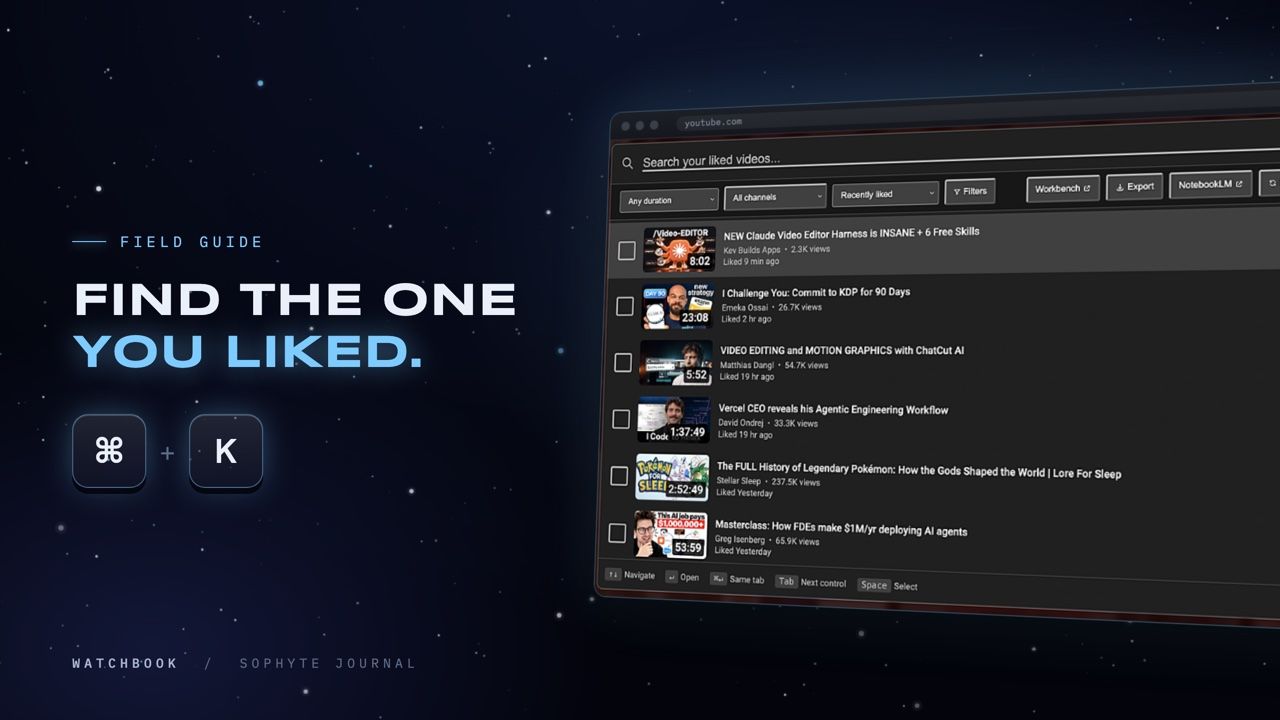
It happens to me about once a week. Someone asks a question, and I know the answer is in a video I liked. A twenty-minute explainer, probably from last spring, the one with the whiteboard and the slightly-too-loud intro music. I remember watching it. I remember tapping the thumbs-up. I have no idea what it was called.
So I open my Liked videos and start scrolling. And scrolling. YouTube loads them in batches, newest first, with no search box on the page, no way to type “whiteboard” or a channel name and narrow a few thousand videos down to one. If you’ve liked more than a few hundred videos, you know how this ends: you give up, or you find it forty minutes later and forget why you wanted it.
This guide covers the workarounds that exist, where each one falls short, and the approach I settled on: a single keyboard shortcut that searches every video you’ve ever liked, from any YouTube page.
Why your likes are so hard to search
A like is the lowest-effort way to save anything on the internet. One tap, no decisions, no folders. That’s exactly why it sticks as a habit, and exactly why the pile grows so fast. Almost everyone I know who learns from YouTube (programmers, home cooks, students, anyone who watches lectures at 1.5x) has liked thousands of videos without ever meaning to build a collection.
YouTube treats that pile as a feed, not a library. The Liked videos page is one long list in the order you happened to like things. The search bar at the top searches all of YouTube, not your likes. The History page has a search box, but it covers what you watched, not what you chose to keep. The videos you deliberately saved end up being the hardest ones to get back.
The workarounds, honestly
Before building anything, I tried every trick I could find. Each one works a little.
- Scroll, then Ctrl+F. Scroll the Liked page until enough of it has loaded, then use your browser’s find. Fine for last month’s likes; hopeless for a video from two years and three thousand likes ago. It also only matches words in titles you can see.
- Search your watch history. Useful if you watched the video recently and history was switched on. But it searches viewing, not likes, and history gets paused, cleared or simply buried.
- Google Takeout. You can export your YouTube data and get your liked playlist as a file. It’s a genuine archive, but it’s a download to unpack, not a search box you can use while you’re on YouTube, and it’s stale the moment you like something new.
- Sort into playlists as you go. The disciplined answer. If you already do this, you don’t need this article. I’ve never met anyone who keeps it up.
What I actually wanted was the search I use everywhere else: press a shortcut, type the few words I half-remember, see the video.
Search your liked videos with Ctrl+K
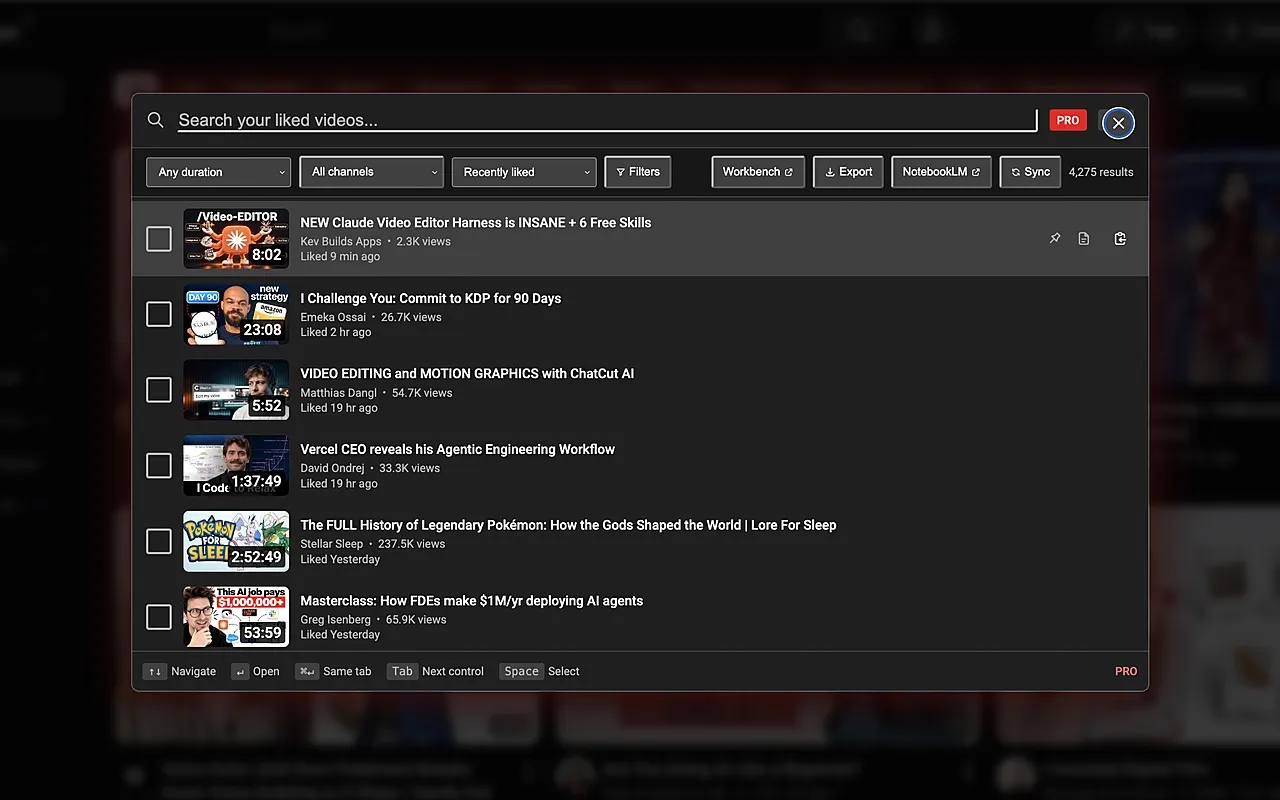
That’s what Watchbook does. Full disclosure: I built it, here at Sophyte, because I was tired of losing videos I had deliberately saved. It’s a Chrome extension that adds a search panel to YouTube. Press Ctrl+K (⌘K on a Mac) on any YouTube page, start typing, and your liked videos filter as you type.
Setting it up takes about a minute:
- Install Watchbook from the Chrome Web Store.
- Connect your YouTube account. Sign-in goes through Google, and Watchbook asks for read-only access. It can see your likes; it can’t change anything on your account.
- Let it sync. The first sync pulls your liked videos into your browser. A big library takes a little longer the first time; after that, each sync only fetches what’s new.
- Open YouTube and press Ctrl+K. Type anything you remember: a word from the title, the channel, a phrase from the description.
Press Enter to open the highlighted video, or move through the list with the arrow keys. Escape closes the panel and drops you back exactly where you were.
What makes it fast to find things
Search alone gets you most of the way. A few details make it reliable instead of lucky.
- It searches more than titles. Results weigh the title most, then the channel, then the description, so a fuzzy memory like “that knife video from the cooking channel” still lands. Small typos are forgiven and accents don’t matter: “cafe” finds “Café”.
- Filters for the details you do remember. Often you can’t recall a single word of the title, but you know it was long, or that you liked it last summer. Filter by length, by when you liked it or when it was uploaded, by view count, or by channel.
- Sorting that fits the question. Recently liked, recently uploaded, most viewed, longest, or alphabetical.
- Pins for the regulars. Pin a video and it stays at the top of your results. I pin my reference videos: a stretching routine, a talk I rewatch before presenting, a tutorial I never quite memorize.
From the same panel you can select several videos to copy their links or open them together, and sync new likes without leaving the page.
Why this is a productivity tool, not a convenience
It’s tempting to file this under nice-to-have. I’d argue the opposite. A like is a small promise to your future self: this was worth something, and I’ll want it again. Without a way to find it, the promise breaks, and the cost shows up quietly, as re-searching, rewatching the wrong video, or relearning something you already understood once.
Retrieval is the hidden bottleneck in every personal knowledge system. Notes apps, read-later lists, browser bookmarks: they all fail the same way, by being easy to fill and hard to search. Making your likes searchable turns years of casual taps into a library you can actually use. You already have the capture habit. This just pays it off.
There’s a smaller, daily win too: staying in flow. Ctrl+K works on any YouTube page, so you never leave the tab, open another app, or lose your place in the video that’s playing.
Where your data lives
Your liked-video library, your searches and your exports stay on your device, in your browser. Sign-in is handled by Chrome and Google, and the only things that reach our server are Pro licence checks and checkout. Searching your own history shouldn’t require uploading it somewhere first.
Frequently asked questions
Can you search liked videos on YouTube without an extension? Not directly. The Liked videos page has no search, so your options are scrolling with your browser’s find, searching your watch history, or exporting your data with Google Takeout.
Is Watchbook free? Yes. The free Starter plan searches your 300 most recent likes. Pro is a one-time $19 for your entire liked history, with a 30-day money-back guarantee.
Does it search inside the video, like transcripts? No. It searches titles, channels and descriptions, the things you’re most likely to remember. Your own notes are searchable too; more on that in how to take notes on YouTube videos.
What’s the shortcut on a Mac? ⌘K. On Windows, Linux and ChromeOS it’s Ctrl+K.
Does it work on my phone? Not today. Watchbook is a Chrome extension for desktop.
Your likes are already a library. They’re just missing a catalogue. If you want to go further, with collections, saved searches and notes, read your liked videos are a library, run it like one, or see everything Watchbook does.
Watchbook is an independent extension made by Sophyte Digital LLC. It is not affiliated with or endorsed by YouTube or Google.