There’s a kind of YouTube video I watch with a notebook open: the forty-minute lecture, the conference talk, the tutorial where someone does in eight minutes what would cost me an afternoon to work out alone. I watch it, I nod along, and a week later I can tell you roughly what it was about and almost nothing it actually said.
The problem isn’t attention. Watching feels like learning while it’s happening, and most of it is gone by Friday. The fix is old, boring and reliable: write things down while you watch. What has never been easy on YouTube is where.
Why taking notes on YouTube is so clunky
I’ve tried most of the usual setups. They all break in the same places.
- A separate notes app. You switch windows, type, switch back, and the video has kept playing. Or you paused it, and now you’re managing two windows instead of watching one.
- Timestamps typed by hand. You glance at the player, type “14:32”, and later that number is just text. To go back, you open the video and scrub until you find it.
- Notes divorced from their video. Six months later you have a note titled “great talk on sleep” and no idea which video it came from, because the link lived in another tab.
- Comments, or yet another doc. Either public, or one more document you’ll never reopen.
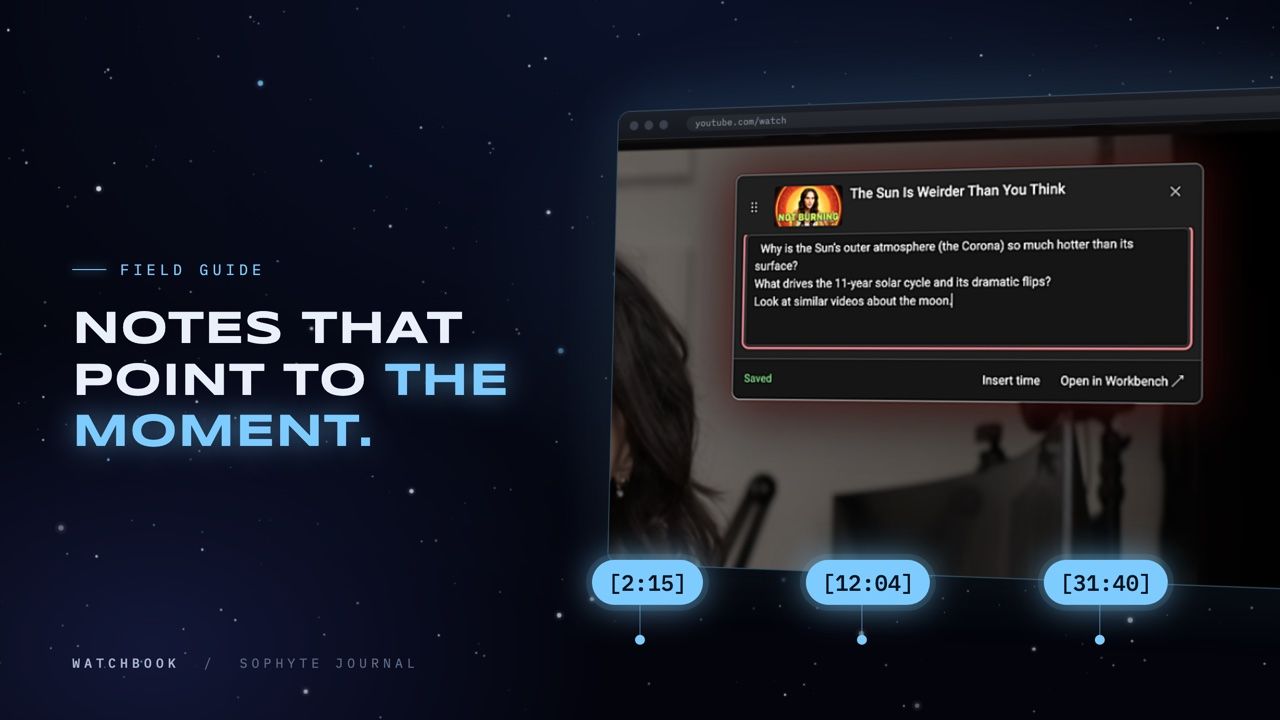
What I wanted was a note that lives with the video: open it without leaving the page, stamp the current moment in one click, and click that stamp later to land right back on it.
Taking a note with Watchbook
Watchbook is the Chrome extension we built at Sophyte to make liked YouTube videos searchable (here’s how the search works). Notes grew out of the same idea: the videos you keep are worth more when you can find what was in them.
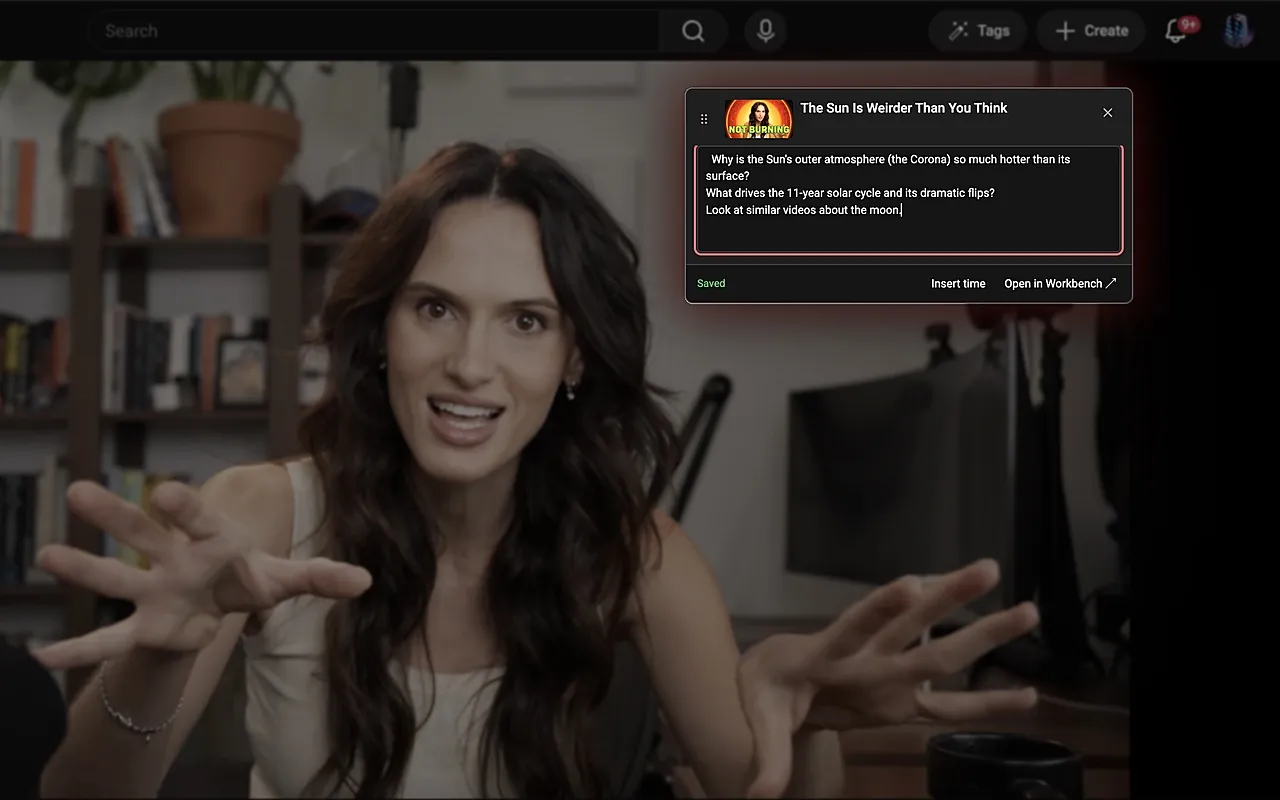
Here’s the whole flow:
- Like the video. Notes attach to videos in your liked library. A like is how you tell Watchbook “this one matters.”
- Press Ctrl+K (⌘K on a Mac) on the video’s page. The panel recognizes what you’re watching and shows a Now watching line. Choose Take a note, and a small note card opens near the top of the page. The video keeps playing.
- Type. The note saves itself as you go; there’s no save button to forget. Keystrokes stay inside the card, so typing a “k” or a space won’t pause or skip the video.
- Click Insert time to drop the current moment into your note as a timestamp, like
[14:32]. - Click any timestamp and the video jumps straight to that second.
The card is designed to stay out of your way. Drag it wherever it covers the least, resize it, and once you stop typing it fades after a few seconds so you can see the whole frame. Move your mouse and it’s back. If you’d rather it stay visible, set it to always show.
One small detail I’m fond of: YouTube’s Ask feature cites moments in its answers like (2:15). Paste one of those answers into your note and the times become clickable timestamps too.
A note template that actually helps
The tool matters less than the habit. After a lot of half-finished notes, this is the shape I keep coming back to, short enough to fill in while the video plays:
- Why I saved this. One line. Future you will be grateful.
- Moments. Timestamps with a few words each:
[3:10] the core argument,[17:45] the worked example. - What I’ll do with it. A question to look into, something to try, someone to send it to.
The moments list is where timestamps earn their keep. Your note becomes a table of contents for the video. When you come back, you don’t rewatch forty minutes. You click to the three that mattered.
Getting your notes back out
A note you can’t find is just a slower way to forget. So notes are searchable from the same Ctrl+K panel as your videos. Type a word, and below the matching videos you’ll see In your notes, with snippets from every note that mentions it. Click one and the note opens on the line that matched.
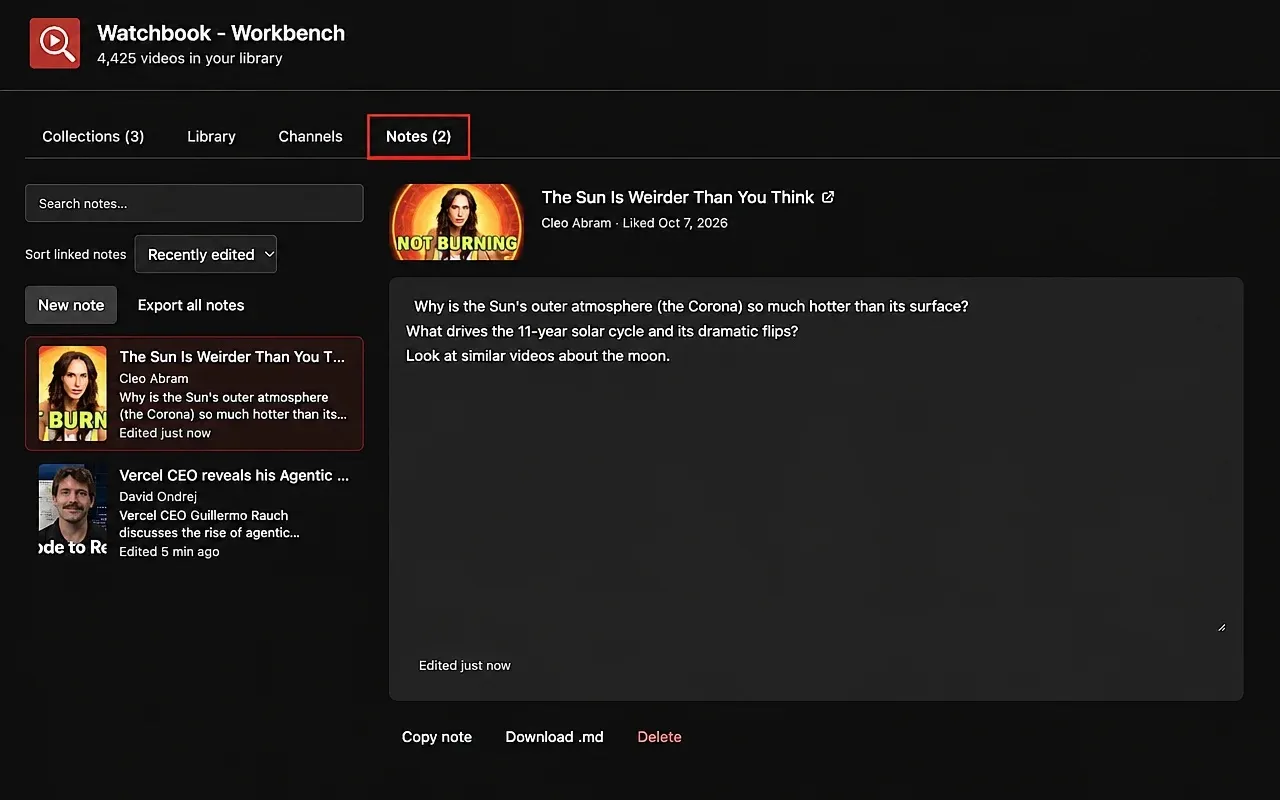
For longer sessions there’s the Workbench, a full page that opens from the panel. Its Notes tab puts every note in one searchable, sortable list, each one beside the video it belongs to.
Two more things make notes useful beyond a single video:
- Collection notes. Group related videos into a collection, say “Sleep research” or “Kitchen basics”, and give the collection a note of its own: the summary, the open questions, the thread that connects them.
- Markdown export. Copy a note, download it as a
.mdfile, or export all your notes at once. Timestamps turn into links to the exact moment on YouTube, so your notes drop cleanly into Obsidian, Notion, or wherever your notes already live.
Why this makes you remember more
There’s a reason teachers make you write things down. Putting an idea into your own words forces you to understand it first. Psychologists call it the generation effect, and it’s one of the sturdiest findings in learning research. Watching is passive; writing is active. A few lines per video turn the first into the second.
Timestamps add something paper never could: a direct path back to the source. Your note records what you thought, and the timestamp shows you what was actually said. Together they make a far better memory than either one alone.
And because the note lives with the video, in the place you already are, the friction drops low enough that you’ll actually do it. That’s the whole game with productivity habits. Not the perfect system, but the one you’ll still use on a tired Tuesday night.
The honest limits
- Notes are for liked videos. Like the video first, then take your note.
- The free plan covers notes on 10 videos. You can keep editing those forever. Pro, a one-time $19, removes the limit. Collection notes and Markdown export are free on every plan.
- No transcripts, no AI. Watchbook doesn’t summarize the video for you. The notes are yours, in your words.
- They live on this device. Notes are stored in your browser, not on our servers. Export them whenever you want a copy somewhere else.
Frequently asked questions
Can you take notes directly on YouTube? YouTube doesn’t offer private notes on videos. A browser extension like Watchbook adds a note card to the watch page, so you can write while the video plays.
How do I add timestamps to my YouTube notes?
In Watchbook, click Insert time while the video plays. It adds the current moment as [m:ss], and clicking that later jumps the video back to the same second.
Can I export my YouTube notes to Obsidian or Notion? Yes. Notes export as Markdown, and every timestamp becomes a link to that exact moment in the video.
Are my notes private? Yes. They’re stored on your device, never on our servers, and nobody else can see them.
If your likes are turning into a real collection of lectures and tutorials, the next step is giving them some structure: your liked videos are a library, run it like one.
Watchbook is an independent extension made by Sophyte Digital LLC. It is not affiliated with or endorsed by YouTube or Google.