I counted once. Over about eight years I had liked a little over four thousand YouTube videos. Cooking technique, programming talks, travel guides, and a frankly embarrassing number of videos about espresso. Somewhere in that pile is a better education than most courses I’ve paid for. I had just never treated it like one.
That’s the strange thing about likes: you build the library one tap at a time without ever deciding to. It has no shelves, no catalogue, no reading room, just a single line of videos ordered by when you happened to like them. Here’s how I turned mine into something I work from instead of scroll past.
Start with search, then add shelves
The first step is being able to find anything at all, which I’ve covered in how to search your liked YouTube videos. Once search works, structure is just a matter of the questions you keep asking.
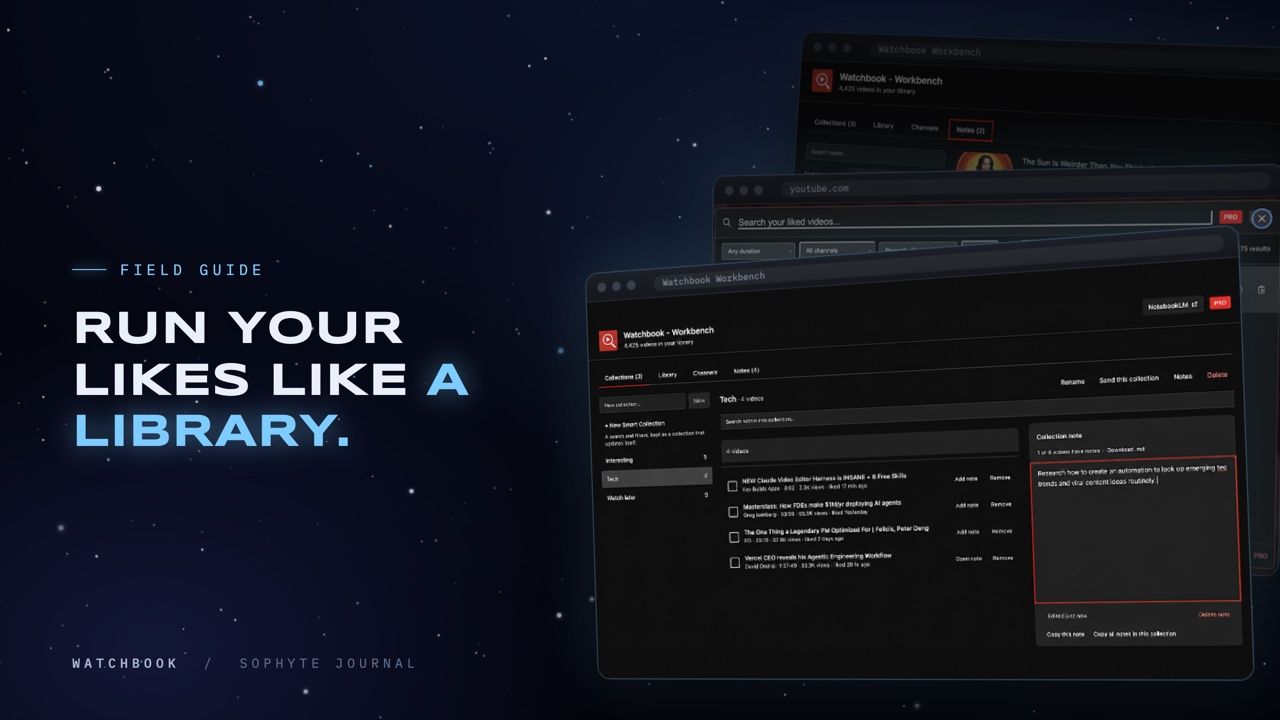
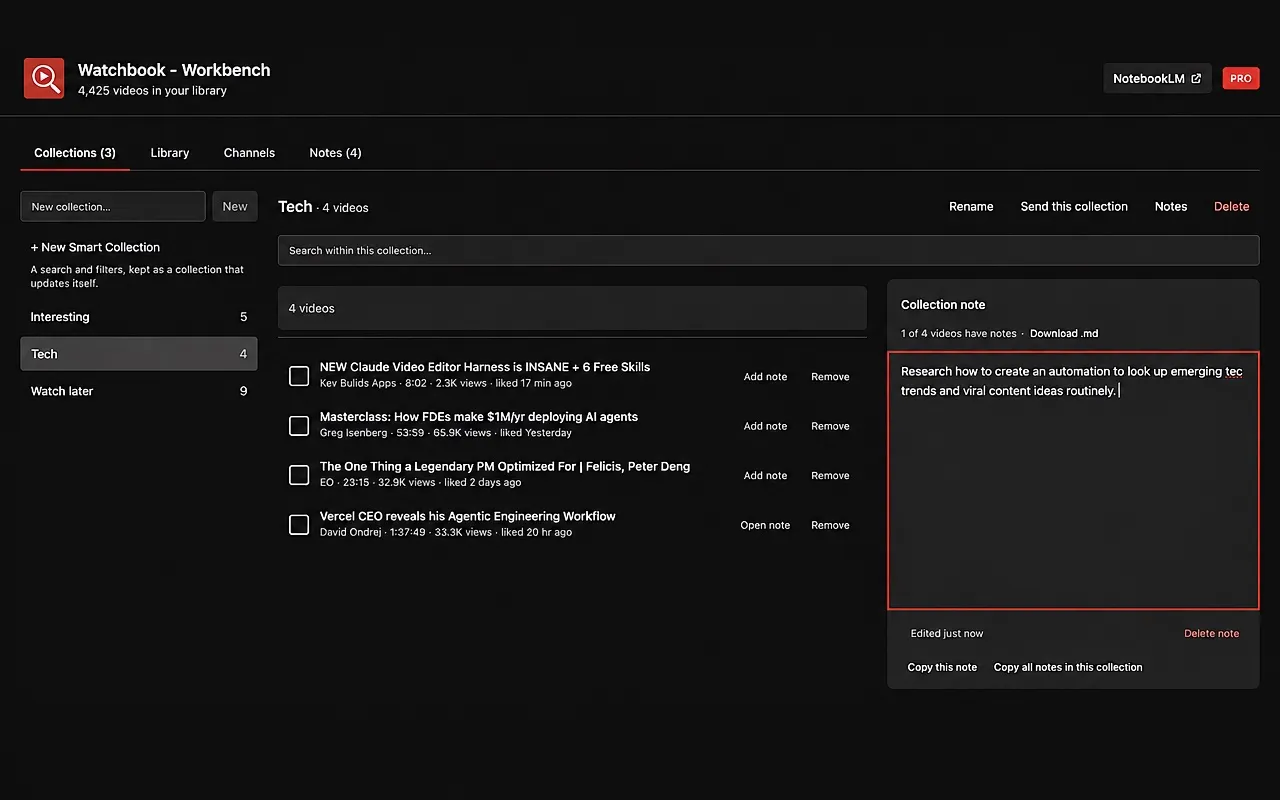
In Watchbook, the Chrome extension we built at Sophyte for exactly this, structure lives in the Workbench: a full page that opens from the Ctrl+K panel, with tabs for Collections, Library, Channels and Notes.
Collections: shelves you choose
A collection is a named group of videos. “Kitchen basics.” “Before the Japan trip.” “Talks to rewatch every January.” Add videos straight from your search results or from your full library, search within a collection, and give it a note of its own: the summary, the open questions, the thread that ties the videos together.
The trick that keeps collections from becoming another chore is to make them for projects, not categories. “Machine learning” is a category, and it will grow forever. “Learning PyTorch for the image project” is a project. It has an end, and every video in it has to earn its place.
Smart Collections: shelves that stock themselves
Some shelves shouldn’t need you at all. A Smart Collection is a saved search, filters included, that keeps itself up to date. Define it once (everything from three favourite channels that runs longer than twenty minutes, say, or anything mentioning “sourdough” that you liked in the last year) and every new like that fits shows up on its own.
It’s the closest thing I’ve found to a reading list that maintains itself. I keep one for long talks I liked but haven’t sat down with yet, and it has quietly become my weekend queue.
Filters: ask your library better questions
The Library tab shows everything you’ve liked, with filters that turn vague memories into precise questions:
- Length. Under 4 minutes, 4 to 20, over 20, or a range of your own. Short tutorials and long lectures are different needs.
- Dates. When you liked it, or when it was uploaded.
- Views. Separate the famous explainer from the hidden gem.
- Channels. Include or exclude, so one prolific channel doesn’t drown out everyone else.
Select the results in bulk and add them to a collection in one move. Like a search you’ll want again? Save it as a Smart Collection.
Channels: see who you’ve been learning from
The Channels tab lists the channels behind your liked videos, with YouTube’s public numbers for each (subscribers, total views, video count), every figure dated, and the whole table downloadable as a CSV. It turns out to be a surprisingly honest mirror. Mine showed that a handful of small channels had taught me more than the famous ones, which changed whose uploads I check first.
Take a collection to NotebookLM, and anywhere else
A library becomes far more useful when you can carry a slice of it somewhere else. From any collection, or any search, you can export the videos as CSV, JSON or Markdown, with titles, channels and links.
That makes for a lovely workflow with Google’s NotebookLM. Build a collection on one topic, export it, and add those videos to a notebook as sources (NotebookLM accepts YouTube links). Now you’re asking questions across fifteen videos you hand-picked, instead of across the whole internet. Watchbook never sends anything to NotebookLM itself. The export is a file on your machine, and you decide where it goes.
Pins: the front desk
Pins are the smallest piece of structure and probably the one I use most. Pin a video and it stays at the top of every search. Keep the handful you open every week there, the workout, the reference talk, the tutorial you never quite memorize, one keystroke away.
Why a little structure pays off
Organizing is only worth it if it saves time later, and this kind pays twice. First, retrieval: the right video in seconds instead of a long scroll. Second, and more interesting, synthesis. A collection is a small, curated body of work on one question, which is exactly the raw material for writing, teaching, deciding, or feeding a research tool. Your likes already record what you found valuable. A little structure lets them answer back.
Start small: one project collection, one Smart Collection, three pins. You’ll know within a week whether it earns its keep.
Frequently asked questions
How do I organize my liked videos on YouTube? YouTube lets you add videos to playlists one at a time. For a large liked library, an extension like Watchbook adds collections, saved searches that update themselves, filters and bulk actions on top of the likes you already have.
Is it free? The free Starter plan covers your 300 most recent likes, with 3 collections and 1 Smart Collection. Pro, a one-time $19, unlocks your whole liked history, unlimited collections and the full set of filters and exports.
Can I use my liked videos with NotebookLM? Yes. Export a collection from Watchbook, then add the videos to a NotebookLM notebook as sources.
Where is my library stored? In your browser, on your device. Watchbook doesn’t upload your liked videos anywhere.
And once your shelves are in place, the next habit worth building is writing down what’s on them: how to take notes on YouTube videos, right where you watch them.
Watchbook is an independent extension made by Sophyte Digital LLC. It is not affiliated with or endorsed by YouTube or Google.